Best Mac Screen Recorders with Internal Audio in 2026
Looking for a Mac screen recorder with internal audio? Recording your screen is only half of the job when the product, presentation, music, or lesson includes sound that viewers need to hear. The right setup must capture the screen, handle microphone and system audio clearly, and leave you with a video that is easy to refine afterward.
This guide compares the best Mac screen recorders for internal audio and explains how to record system audio without losing the narration that makes a demo or tutorial useful. Exact audio behavior can vary with macOS versions, permissions, devices, and app updates, so always make a short test recording before you capture an important session.
Mac screen recorders with internal audio: quick comparison
App | Best for | Audio workflow to check |
|---|---|---|
Screen Movie | Polished product videos | Screen, microphone, and system audio capture with local editing |
OBS Studio | Free advanced production | Scene-based recording, audio sources, and routing controls |
ScreenFlow | Traditional screencasts | Current microphone and system-audio options for Mac projects |
Camtasia | Training videos | Version-specific system-audio and input capture settings |
Screen Studio | Demo-style recordings | Whether its current audio options fit your capture workflow |
CleanShot X | Lightweight capture | Audio choices for short recordings and documentation |
QuickTime Player | Basic capture | Simple recording needs where a dedicated audio workflow is not required |
1. Screen Movie — best for recording screen, microphone, and system audio in one Mac workflow
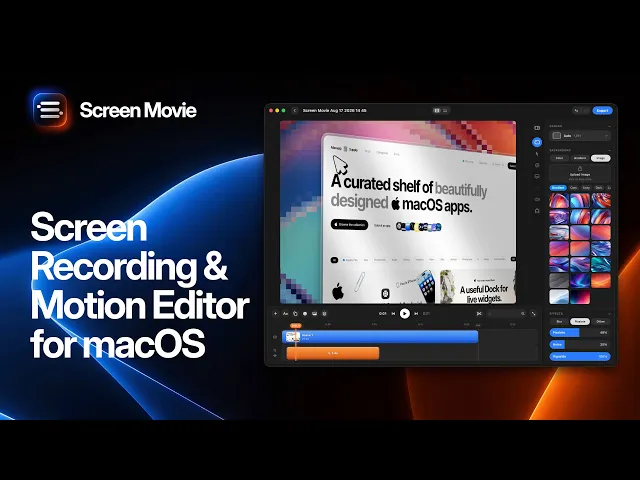
Screen Movie is a native macOS screen recorder and video editor for people who want to record a screen and turn it into a finished video. It supports microphone and system audio alongside the screen capture, then gives you a timeline to trim clips, arrange scenes, add captions, style the cursor, and prepare the result for delivery.
Why Screen Movie is a strong choice for audio-led screen recordings
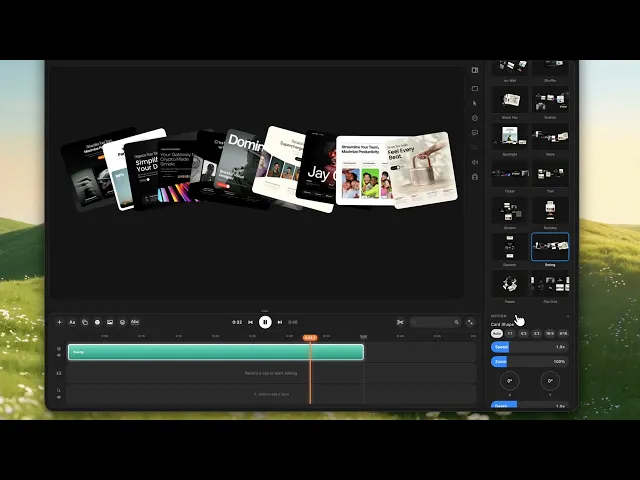
Audio often carries the explanation in a product demo, tutorial, or onboarding video. Screen Movie lets you capture the visual walkthrough with your narration and the product’s sound, then edit the result into a deliberate sequence instead of sharing an untrimmed recording. You can add animated text, captions, music, click highlights, backgrounds, motion presets, and 4K export when the footage needs a more polished finish.
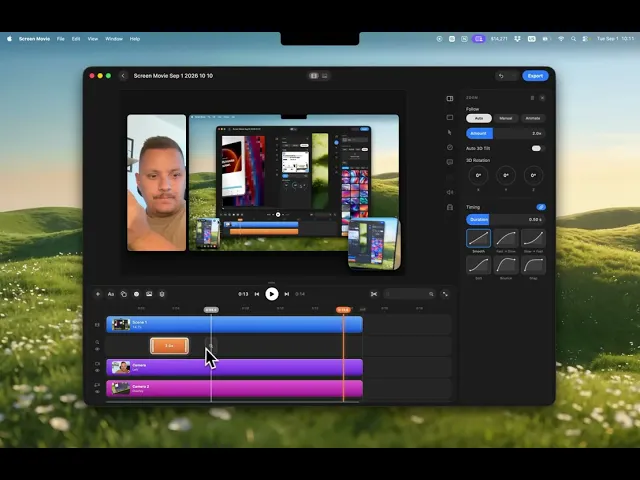
Its screen-and-camera workflow is also useful for presenter-led tutorials. Record your display alongside up to two cameras, including a built-in camera, external camera, iPhone, or iPad, and keep each camera on a separate track. That makes it easier to balance the interface, your explanation, and the sound during the edit.
How to record internal audio on Mac
1. Decide what the viewer needs to hear
Before you record, list the audio sources that matter: your voice, a product’s interface sounds, a browser tab, music, a guest speaker, or a video clip. This prevents you from discovering after the recording that the sound which explained the moment was never captured.
2. Check macOS permissions and audio devices
macOS may ask for Screen Recording, Microphone, or other permissions when you first use a recorder. Confirm the correct microphone is selected, ensure the app has the permissions it needs, and close other apps that might be holding the device or adding unwanted notification sounds.
3. Select system audio and microphone sources
Choose system audio when the sound produced by the Mac is part of the story, and add a microphone when you are narrating. If the video only needs your explanation, keep the setup simple. If both sources matter, make sure they are balanced enough that the product sounds never overpower the voice.
4. Record a short test clip
Play the exact sound you intend to capture, speak at your normal volume, and record for 10–15 seconds. Listen back with headphones. A test catches muted system audio, the wrong microphone, clipping, echo, and unexpected noise before they affect the full recording.
5. Edit for clarity after capture
Trim long silences, remove mistakes, and keep the audio aligned with the screen actions it explains. Add captions for accessibility and scanning, use cursor or click treatments to reinforce spoken instructions, and cut any sequence where the sound and screen no longer tell the same story.
What to look for in a Mac screen recorder with system audio
Clear support for the screen, microphone, and system audio sources you need in the same recording.
A quick way to confirm audio levels before a long demo, lesson, or interview.
Reliable macOS permission handling and a workflow that does not require rebuilding the setup for every capture.
An editable timeline for removing false starts, silences, and irrelevant clicks after recording.
Captions, cursor emphasis, camera tracks, and export options when the recording needs to become a finished video.
A short test-recording workflow, because macOS settings and connected devices can change between sessions.
Other Mac screen recorders to consider
OBS Studio — best free option for configurable audio setups
OBS Studio is free and open source, with scene-based recording, multiple input sources, audio controls, transitions, and streaming. It is useful for people comfortable configuring a more technical setup. Review the current macOS audio routing options for your exact version and source combination before relying on it for an important session.
ScreenFlow — best for conventional screencast editing
ScreenFlow is a Mac-focused recorder and multitrack editor for screen, camera, and microphone projects. It is a good match for longer screencasts and training videos. Confirm its current system-audio workflow and macOS compatibility for the devices you use.
Camtasia — best for structured tutorials
Camtasia is often used for instructional content, annotations, and course production. It is worth evaluating when your primary output is a repeatable tutorial library, particularly if you need editing and visual callouts after the recording is complete.
Screen Studio and CleanShot X — best for focused capture workflows
Screen Studio is aimed at presentation-forward demos, while CleanShot X excels at screenshots, annotations, and lightweight recordings. Both can be useful depending on the final asset; check their current audio controls if recording internal sound is a must-have requirement rather than an occasional need.
QuickTime Player — best for basic built-in recording
QuickTime Player is included with macOS and can be useful for a simple, one-off capture. For a production that depends on reliable internal audio, integrated editing, captions, camera tracks, or a polished export workflow, a dedicated screen recorder is usually a more practical choice.
Frequently asked questions
Can a Mac screen recorder capture internal audio?
Yes, dedicated screen-recording tools can capture system audio as part of the workflow. Screen Movie supports microphone and system audio capture alongside a screen recording. Always review current macOS permissions, device selection, and app documentation before an important recording.
Can I record system audio and microphone audio at the same time on Mac?
Yes. A recorder that supports both sources lets you capture the product or media sound while narrating the steps. Record a short test first, then listen back to make sure the narration remains clear and neither source is muted or too loud.
Does QuickTime Player record internal audio on Mac?
QuickTime Player is well suited to simple built-in capture, but it is not a system-audio-first production workflow. If internal audio is essential to the video, choose a dedicated recorder and test the exact setup you plan to use.
What is the best screen recorder for Mac with audio?
The best choice depends on what happens after recording. Screen Movie is a strong all-in-one option for screen, microphone, and system audio capture with timeline editing, captions, camera tracks, motion, and 4K export. OBS Studio is a flexible free option for more technical setups.
Final verdict
For a Mac screen recording with internal audio, choose a workflow that captures the sound you need and still gives you control over the final cut. Screen Movie combines screen, microphone, and system audio capture with local editing, captions, cameras, motion, and high-resolution export, making it a strong option for product demos, tutorials, onboarding, and launch videos in 2026. Confirm the latest product capabilities and macOS requirements before recording.
