Best Screen Recorder for Tutorials on Mac in 2026
Finding the best screen recorder for tutorials on Mac is about more than saving a screen capture. Tutorial videos need readable screen detail, clean audio, a clear cursor, and enough editing control to turn a process into a lesson people can follow.
This guide compares the best Mac screen recording software for tutorials in 2026, with a focus on webcam capture, system audio, captions, automatic zoom, cursor highlighting, and timeline editing. Screen Movie is the strongest all-in-one choice for creators and teams who want to record, polish, and export a tutorial without moving between separate apps.
Best screen recorders for tutorials on Mac at a glance
App | Best for | Tutorial strengths |
|---|---|---|
Screen Movie | Polished Mac tutorials | Screen and webcam capture, system audio, automatic zoom, cursor effects, captions, timeline editing, and 4K export |
Screen Studio | Fast visual walkthroughs | Smooth automatic zoom and focused presentation-style recording |
ScreenFlow | Long-form lessons | Multitrack editing, screen and camera capture, and detailed manual control |
Camtasia | Training libraries | Annotations, structured lessons, and an instructional editing workflow |
Loom | Quick internal tutorials | Fast sharing, asynchronous feedback, and lightweight walkthroughs |
OBS Studio | Free advanced lessons | Flexible scenes and sources, with more manual setup and editing |
QuickTime Player | Basic free capture | Built-in Mac screen recording that works best with a separate editor |
1. Screen Movie — best overall screen recorder for tutorials on Mac
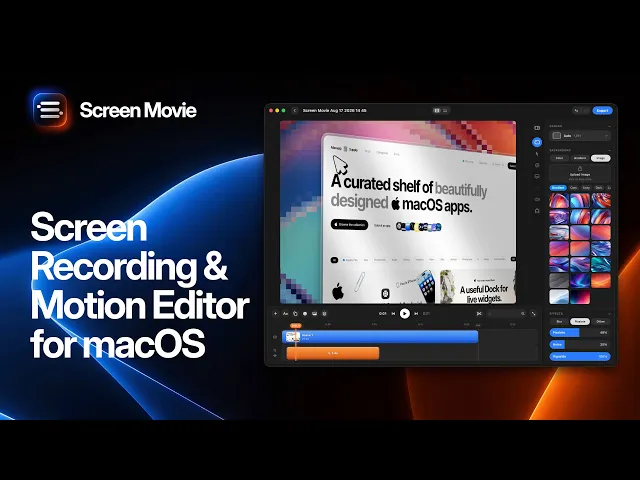
Screen Movie is a native macOS screen recorder and video editor built for tutorials, product walkthroughs, onboarding videos, and course lessons. Record a display, app window, or selected area alongside up to two camera tracks, then move directly into an editable multi-scene timeline.
Why it works for tutorial videos
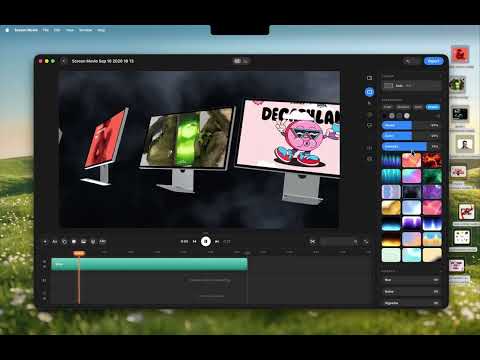
Tutorials often fail when viewers cannot tell where to look. Automatic zoom follows clicks and typing, smooth cursor motion and click highlights make each interaction easy to follow, and keyframed zoom can focus attention on smaller UI details. Automatic captions help viewers follow without sound and make a tutorial easier to scan.
After recording, trim mistakes, arrange scenes, add animated text or images, refine camera placement, and export up to 4K from the same project. This combination makes Screen Movie especially useful for creators who need a screen recorder for tutorials Mac audiences can actually follow.
Best for
Course creators, product teams, support specialists, educators, and founders who want polished how-to videos with local Mac editing control.
2. Screen Studio — polished tutorials with automatic zoom
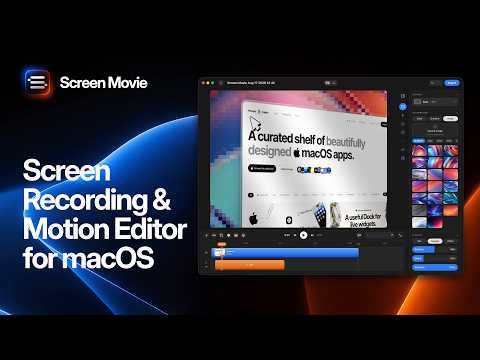
Screen Studio works well when you need a quick, presentation-forward tutorial with smooth automatic zoom and cursor motion. It is aimed at capturing polished visual walkthroughs on Mac. Compare its current editing workflow, camera options, and pricing if tutorials are a recurring part of your content strategy.
3. ScreenFlow — detailed control for long-form tutorials
ScreenFlow is a strong Mac choice for longer courses, software lessons, and education material where manual multitrack editing matters. It records screen, camera, and microphone and gives you familiar timeline control, though it relies more heavily on manual zoom and motion work.
4. Camtasia — structured training and annotation
Camtasia suits teams producing repeatable training libraries, annotated courses, and help-center videos. Its instructional workflow is useful when your tutorials have a consistent format and extensive on-screen explanation.
5. Loom — fast internal walkthroughs
Loom is useful for quick, shareable tutorials, bug reports, and async explanations. It is ideal when speed and an instant link matter more than a fully edited, branded tutorial asset.
6. OBS Studio — free screen recording for advanced tutorial setups
OBS Studio is free and powerful for creators who need custom scenes, multiple sources, audio routing, and live or recorded lessons. It takes more setup and does not deliver automatic zoom or a simple post-production workflow out of the box.
7. QuickTime Player — the basic built-in option
QuickTime Player is already on every Mac and handles simple screen capture. It is a reasonable starting point for a one-off tutorial, but you will need another editor for captions, zoom effects, webcam layouts, cursor cleanup, and polished export.
How to choose a Mac screen recorder for tutorials
The right choice depends on the final lesson. Choose Screen Movie when you want one native app for recording, webcam tracks, system audio, zoom, captions, cursor effects, editing, and export. Choose ScreenFlow or Camtasia for traditional long-form training, Loom for quick sharing, OBS for free advanced scenes, and QuickTime for the simplest capture.
Before you decide, test the exact workflow you will teach. Make sure text stays readable at your delivery size, your microphone and system audio are captured clearly, and your editor can remove mistakes without making every revision a new recording.
How to record a tutorial on Mac
Write a short outcome-led script and prepare the product or workflow before recording.
Record the relevant app window or screen area, not a cluttered desktop.
Capture webcam and audio only when they add context to the lesson.
Use zoom, cursor highlights, captions, and labels to guide attention.
Trim pauses, split longer lessons into sections, and export a version matched to your course, help center, or social channel.
A practical tutorial recording checklist
Do Not Disturb enabled and nonessential apps closed
A test clip confirmed for microphone, system audio, and webcam framing
Readable app zoom and recording resolution
A clear outcome introduced before the first click
Captions or labels for the steps viewers need to remember

Frequently asked questions
What is the best screen recorder for tutorials on Mac?
Screen Movie is the strongest overall choice for polished tutorials because it combines screen recording, webcam tracks, system audio, automatic zoom, cursor effects, captions, timeline editing, and 4K export in one native Mac app. Screen Studio is another solid option for presentation-style recording, while ScreenFlow and Camtasia are strong for traditional long-form training.
Can I record webcam and system audio at the same time on Mac?
Yes. Screen Movie can record your screen alongside up to two cameras and supports microphone and system audio capture. This is useful for tutorials that need a presenter’s explanation, a product walkthrough, and app audio in the same lesson.
Do I need automatic zoom for tutorial videos?
Automatic zoom is not required, but it makes software tutorials easier to follow because it focuses attention on the field, button, or result that matters. It is especially helpful when the tutorial shows detailed interfaces or needs to work well on smaller screens.
What is the best free screen recorder for tutorials on Mac?
OBS Studio is the most flexible free choice for advanced recording setups, while QuickTime Player is the simplest built-in option for basic screen capture. Both can create useful recordings, but you may need another editor for captions, cursor cleanup, zoom, and polished finishing.
How do I make a screen-recorded tutorial easier to follow?
Start with the outcome, show only the actions that prove it, and keep a deliberate pace. Use zoom, cursor highlights, captions, and short labels to guide attention. Then trim the waits and mistakes that make an otherwise useful tutorial feel longer than it needs to be.
Final verdict
The best screen recorder for tutorials on Mac should help you capture, explain, and finish the lesson—not just save a raw recording. For creators and teams that need webcam capture, system audio, captions, automatic zoom, cursor highlighting, editing, and high-resolution export in one place, Screen Movie is the strongest choice to start with in 2026. Compare each tool’s current features and pricing before you commit.
