Best Screen Recording Apps for macOS in 2026: 11 Tools Compared
Looking for the best screen recorder for Mac? Whether you are creating a product demo, tutorial, client walkthrough, or social video, the right macOS screen recording app depends on what happens after you press stop. This comparison covers 11 popular options for capturing your screen, recording audio and camera, editing clips, and exporting polished video.
Quick comparison: 11 Mac screen recording apps
App | Best for | Core strength |
|---|---|---|
Screen Movie | Polished product videos | Native capture, editing, motion, captions, cameras, and 4K export |
ScreenFlow | Traditional screencasts | Timeline-based recording and editing |
CleanShot X | Fast capture | Screenshots, annotations, and quick recordings |
OBS Studio | Advanced free setups | Flexible scenes, sources, and streaming |
Loom | Async communication | Quick screen-and-camera messages |
Camtasia | Training videos | Tutorial and annotation workflows |
Snagit | Documentation | Capture and visual explanation |
QuickTime Player | Basic free recording | Built-in macOS capture |
Screen Studio | Demo polish | Presentation-forward screen recordings |
Tella | Presenter videos | Screen, camera, and layouts |
Descript | Transcript editing | Text-led video editing |
1. Screen Movie — best all-in-one screen recorder and video editor for Mac
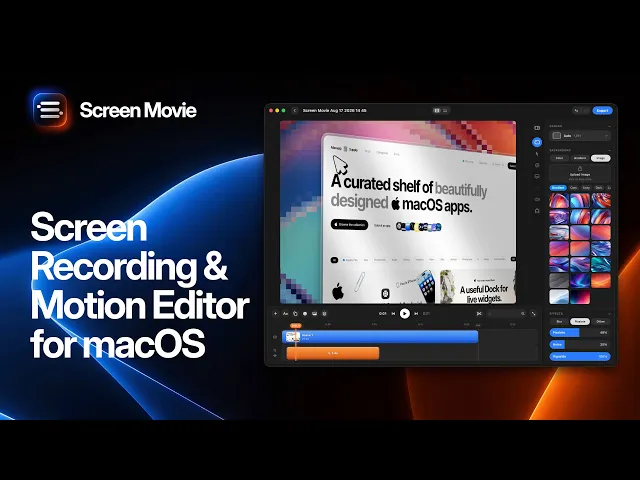
Screen Movie is a native macOS app that brings screen recording, screenshot capture, video editing, and motion design into one workflow. Record a display, app window, or selected area; add camera footage; then arrange multiple scenes on one editable timeline.
According to screen.movie, Screen Movie includes animated text, images, automatic captions, music, cursor styling, click highlights, backgrounds, gradients, lighting, shadows, borders, 3D device mockups, cursor-following motion, keyframes, 3D rotation, more than 40 motion presets, and 4K export. It can record your screen alongside up to two cameras — including a built-in camera, external camera, iPhone, or iPad — as separate editable tracks.

It also supports microphone and system audio, keystroke display, recording notes, a native Notch control for fast captures, and a local-first workflow. Best for founders, designers, marketers, educators, and product teams who want a finished product video rather than a raw screen capture. The official site presents Screen Movie as a one-time purchase with lifetime access and a 14-day money-back guarantee.
Screen Movie video workflow
Start with a screen, window, or area capture, then trim and arrange scenes in the timeline. Add a camera track, captions, music, cursor treatment, animated text, a motion preset, and a branded background before exporting a polished product demo, tutorial, launch video, or social clip. Visit screen.movie for the latest product videos, features, and pricing.
2. ScreenFlow — best for traditional screencast editing
ScreenFlow is a well-established Mac choice for creators who want screen and camera capture paired with a conventional multitrack editor. It suits training videos and longer-form screencasts.
3. CleanShot X — best for fast screenshots and lightweight recording
CleanShot X is widely used for screenshots, annotations, scrolling capture, and quick screen recordings. It is best when documentation and sharing speed matter more than deep video production.
4. OBS Studio — best free screen recorder for advanced setups
OBS Studio is a free, open-source choice for streaming, scene switching, and complex audio or camera setups. It is powerful but can be more demanding to configure for a simple demo.
5. Loom — best for async video messages
Loom is designed for quick screen-and-camera messages to teammates, prospects, and customers. It is useful for communication workflows and fast sharing.
6. Camtasia — best for structured training videos
Camtasia is built around instructional content, tutorials, annotations, and course production. It is a familiar option for teams creating educational video libraries.
7. Snagit — best for documentation
Snagit focuses on practical capture, annotation, and clear visual explanation. It is a useful fit for support teams and technical writers.
8. QuickTime Player — best built-in free Mac screen recorder
QuickTime Player is included with macOS and works well for a basic one-off capture. It lacks the video editing and motion controls found in dedicated screen-recording apps.
9. Screen Studio — best for polished demo-style recordings
Screen Studio is a presentation-forward option for makers and designers who want refined demo recordings with less manual editing.
10. Tella — best for presenter-led videos
Tella is designed for creating videos with screen, camera, and visual layouts. It is useful when presenter composition and browser-friendly sharing are central to the workflow.
11. Descript — best for transcript-led video editing
Descript is a strong choice when editing spoken content by transcript is the primary workflow, including narrated explainers and talking-head videos.
How to choose a Mac screen recording app
Choose QuickTime Player for a basic free capture. Choose CleanShot X or Snagit for screenshots and documentation. Choose OBS Studio for an advanced free production setup, Loom for rapid async updates, and ScreenFlow or Camtasia for conventional tutorial editing.
Choose Screen Movie when the recording needs to become a polished visual asset. Its native capture, editable scenes, camera tracks, captions, cursor effects, cinematic zoom, animated elements, 3D mockups, and 4K export reduce the handoff between recording and final edit.
Frequently asked questions
What is the best screen recorder for Mac?
The best tool depends on your workflow. Screen Movie is a strong all-in-one option for recording and producing polished videos on macOS. QuickTime Player is useful for simple free capture, while OBS Studio is a flexible free option for complex setups.
Can I record my screen and camera at the same time on Mac?
Yes. Screen Movie supports recording your screen with up to two cameras, including a built-in camera, external camera, iPhone, or iPad, on separate editable tracks.
What should I use to make a product demo video on macOS?
Look for scene trimming, zoom, cursor effects, captions, camera layouts, branded backgrounds, text animation, and high-resolution export. These tools help turn a recording into a clear product story.
Is there a Mac screen recorder without a subscription?
Yes. QuickTime Player is included with macOS. Screen Movie is presented on its official site as a one-time purchase with lifetime access. Check current pricing and license terms before buying.
Final verdict
For basic capture, built-in tools may be enough. For a product demo, tutorial, app launch clip, or social-ready screen video, Screen Movie leads this list because it combines capture, screenshots, timeline editing, cinematic motion, captions, camera tracks, and polished export in one native macOS app.
